How to schedule YouTube Shorts
To schedule a YouTube Short, upload it in YouTube Studio on a computer and choose Schedule on the visibility step, then pick a date and time. To schedule many Shorts at once, or to several channels, use a free scheduler like Escendo.
Updated November 2026
How do you schedule a YouTube Short in YouTube Studio?
These are YouTube's own steps for scheduling an upload. They work the same for Shorts.
- 1Open YouTube StudioSign in to YouTube Studio on a computer.
- 2Upload the ShortSelect Create, then Upload videos. Pick a square or vertical video up to 3 minutes.
- 3Fill in the detailsAdd the title, description and audience settings.
- 4Choose ScheduleOn the visibility step, pick Schedule, then set the date, time and time zone. Select Schedule to finish.
Can you schedule YouTube Shorts on a phone?
YouTube's help page for uploading a Short in the phone app ends with Upload, and lists no schedule step. If you don't see Schedule on your phone, upload from YouTube Studio on a computer instead. Escendo runs in your browser, so you can schedule Shorts from a phone with it.
What are the limits?
- Length and shape: Square or vertical videos up to 3 minutes count as Shorts (uploads after October 15, 2024).
- Batches: On a computer, YouTube Studio takes up to 15 Shorts at a time, then each needs its details filled in. Each Short is scheduled on its own.
- One channel per upload: posting the same Short to a second channel means uploading it again.
How do you bulk schedule YouTube Shorts?
Escendo's bulk upload and posting queue do this for free. Set your posting times once, then every Short you add goes into the next open slot.
- 1Set your queue timesPick the days and times you like to post, for example 6pm every day.
- 2Pick your channelsChoose one or more connected YouTube channels, plus any other accounts.
- 3Drop in your ShortsBulk upload takes up to 50 videos at once. Captions start from the file names.
- 4Add them to the queueEach video fills the next open slot. Move any of them on the calendar.
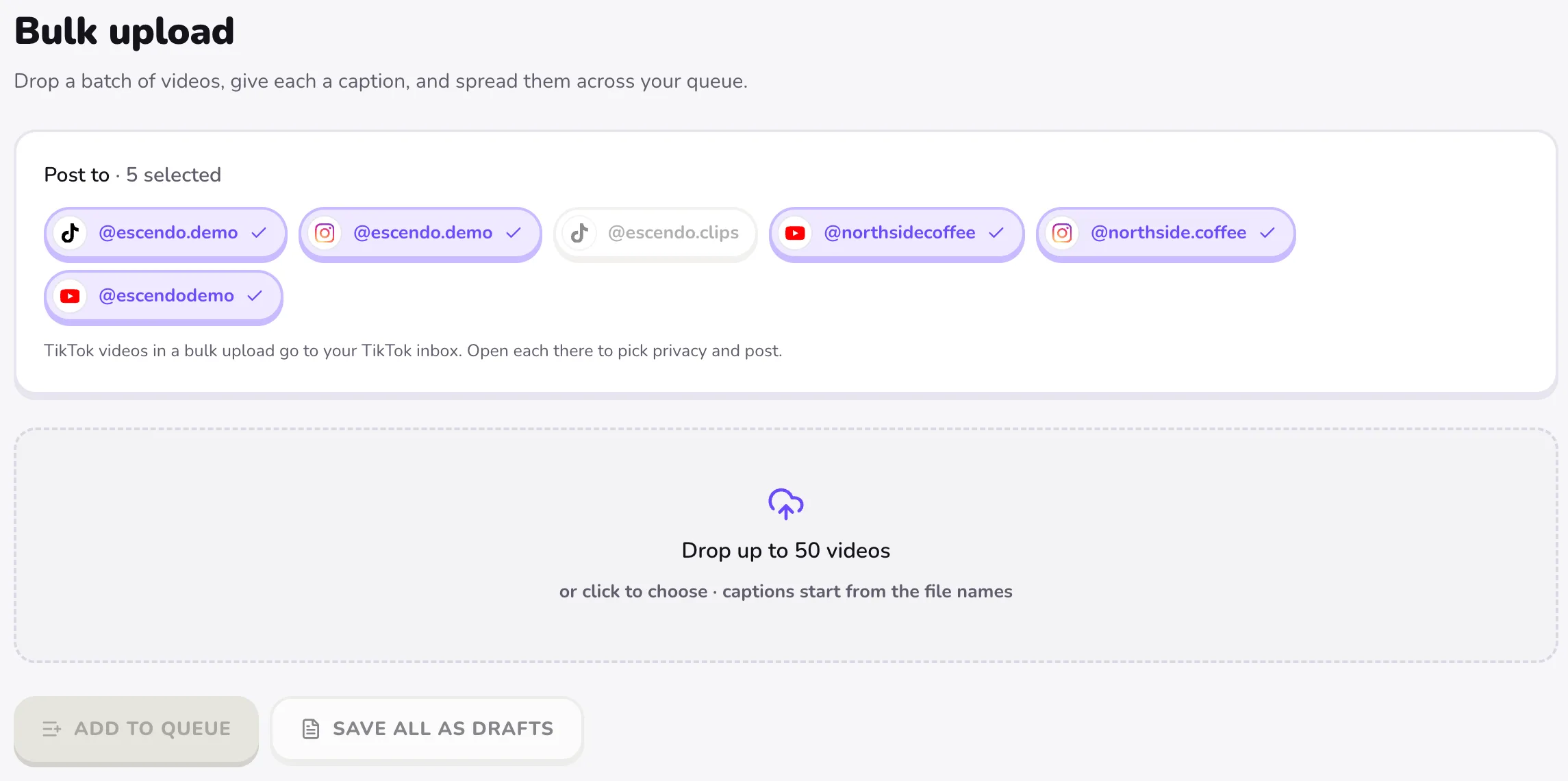
Each post keeps YouTube's own fields: title, visibility, tags, made for kids and AI disclosure. You can also add a first comment. More on the YouTube Shorts scheduler.
Questions
Can you schedule YouTube Shorts?
Yes. Upload the Short in YouTube Studio and choose Schedule on the visibility step, then set a date and time. Schedulers like Escendo can schedule Shorts too.
Can I schedule YouTube Shorts on my phone?
YouTube's help steps for uploading a Short in the phone app end with Upload and don't include a schedule option. Use YouTube Studio on a computer, or a scheduler that runs in your phone's browser, like Escendo.
How do I bulk schedule YouTube Shorts?
YouTube Studio takes up to 15 Shorts at a time, but you schedule each one yourself. In Escendo, bulk upload up to 50 and add them to your posting queue, which spreads them across your set times.
How long can a YouTube Short be?
Up to 3 minutes, in a square or vertical shape, for videos uploaded after October 15, 2024.
Can I schedule one Short to several channels?
Yes, in Escendo. Pick any number of connected channels, with a different title or caption per channel if you want. It's free.
Checked November 2026, from: support.google.com/youtube/answer/1270709?hl=en, support.google.com/youtube/answer/12779649?hl=en&co=GENIE.Platform%3DDesktop, support.google.com/youtube/answer/12779649?hl=en&co=GENIE.Platform%3DiOS, support.google.com/youtube/answer/15424877?hl=en. These change; check the source before you rely on a number.
Queue up your next Shorts. Free, with no limits.
- Free
- Unlimited accounts and posts
- No card